Whitelisting Domains and Application Proxy Configurations
Introduction
This article explains how to identify which domains and subdomains should be whitelisted to ensure applications and websites function correctly within the myDRE environment. It also addresses issues where domain whitelisting alone doesn’t resolve access problems—particularly for Windows applications that may require additional proxy configurations. The document outlines how to use browser developer tools to capture relevant domains and how to report findings to the Support Team for further updates.
Application specific proxy configurations
This is needed when domain whitelisting works (easy to check in the browser), but the application (Windows is notorious) still can't access the whitelisted domain.
Solution
- Search support.mydre.org with:
<application> proxy. - Google:
<application> behind proxy. - Once you got it to work, please inform Support Team so they update/create an article for this specific.
Finding all the relevant (sub)domains
A good start is your own local machine:
- Open up your browser.
- Go the website.
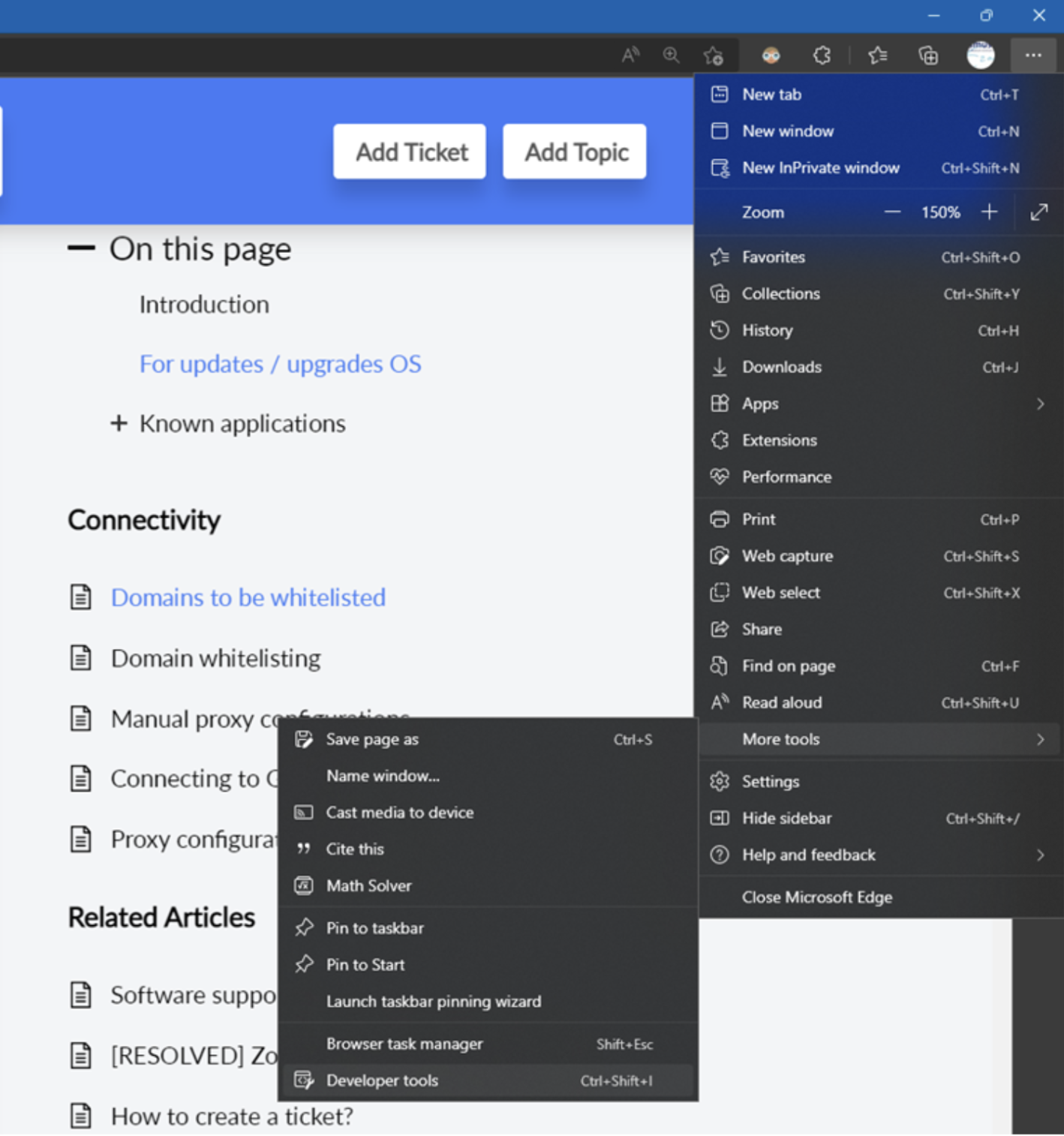
- Open developer tools (e.g.
ctrl+shift+i, or Hamburger > More Tools > Developer Tools).
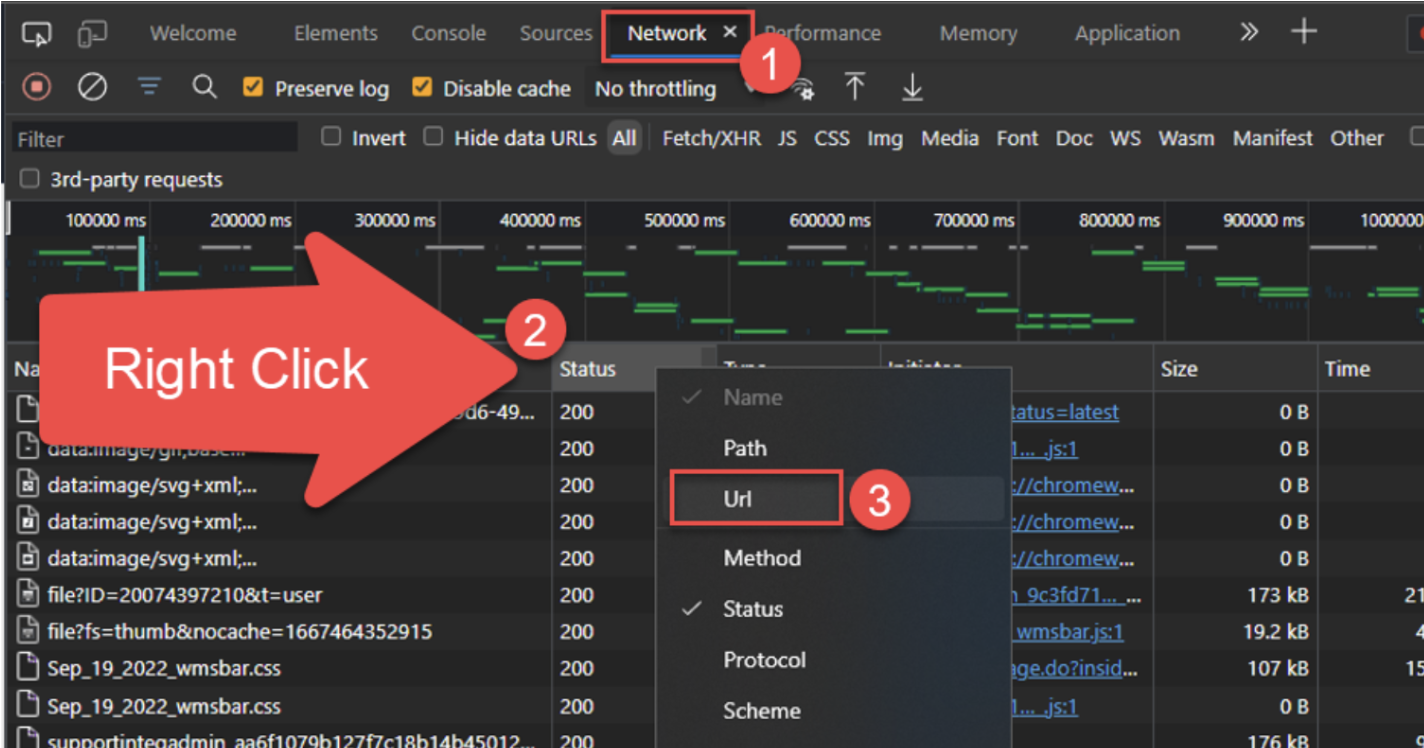
- Click Network.
- Right-click the table header and add Url.
- Refresh the website.
- Click Url to sort.
- Note down all the different (sub)domains.
- Not the URLs, only the (sub)domains.
- e.g.
xxxx.comorxxxx.xxxx.xxx.org. - Ommit: https://www nd
/xxxx.
- Create a ticket with Workspace ID, application/website, and all required (sub)domains.
Trouble shooting
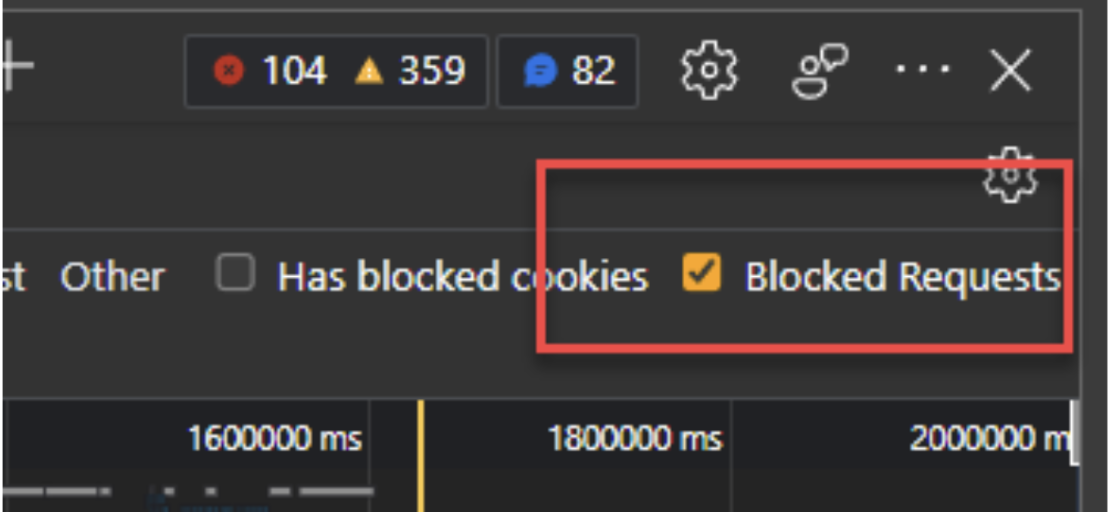
The VM follows the same approach. By clicking Network (one or two times), the URLs that can't be reached show up red. Alternatively, check Blocked Requests to filter.